Capture
Screenshots
Capture the visible page or an area of it, mark it up and attach the page's logs.
Click the Midge button and choose Take screenshot, or press Alt + Shift + S.
To capture part of the page, open the card’s options (the arrow next to Take screenshot) and set Area to Select area. Then drag over the part you want. Press Esc to cancel.
Mark it up
The review opens over the page with the screenshot and these tools:
| Tool | Use it to |
|---|---|
| Arrow | Point at the problem |
| Box | Frame an area |
| Pen | Draw freely |
| Text | Add a short note on the image |
| Blur | Hide anything private; the area is pixelated in the uploaded image |
Choose a color from the swatches. Undo and Redo work with Cmd/Ctrl + Z and Shift + Cmd/Ctrl + Z.
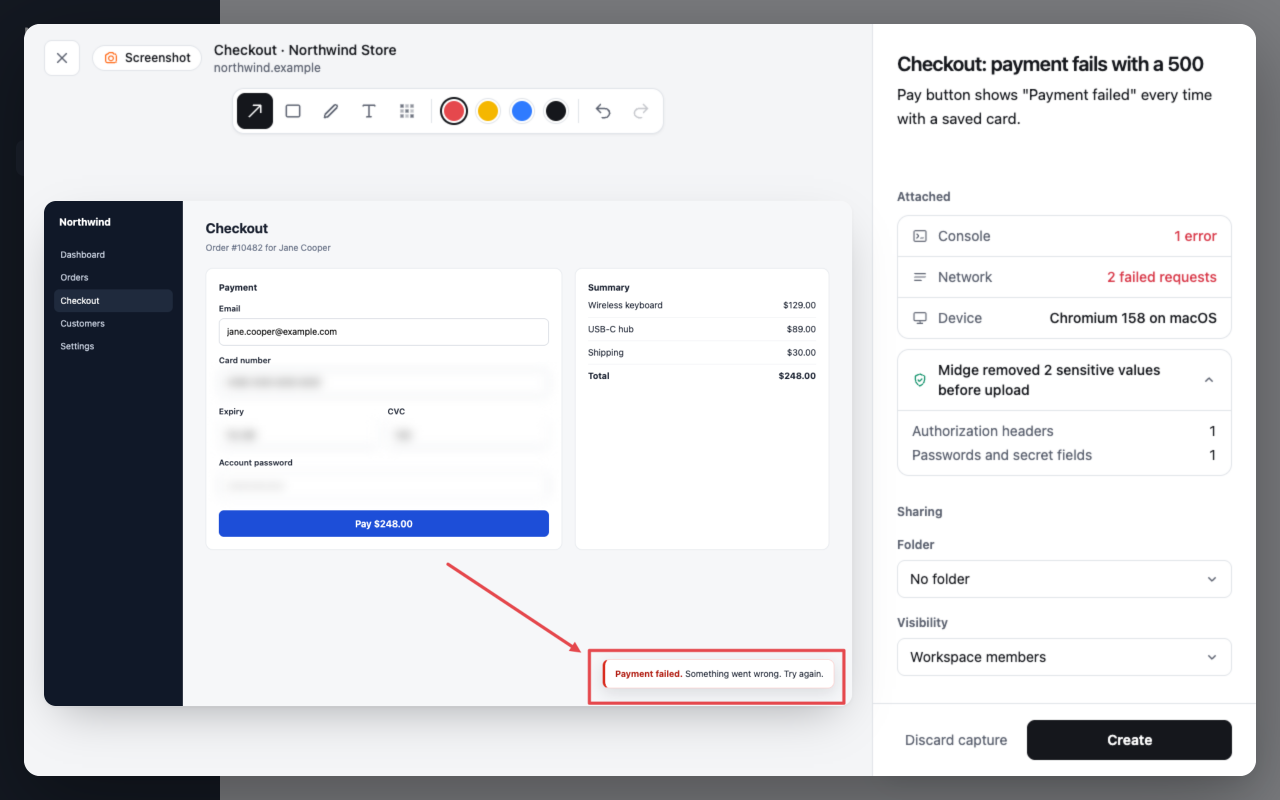
What’s attached
The screenshot comes with the page’s activity from the five minutes before it: console messages, network requests, clicks and page changes, and device details. Password and card fields are blurred in the image itself. See What Midge captures.