Review and upload
Trim a recording, check what Midge removed, choose who can open the report and create its link.
Every capture opens in a review window over the page you were on, before anything leaves your browser. Close it with the × button or Esc; the capture keeps waiting in the popup under captures waiting. On pages where Chrome doesn’t let extensions draw, such as Chrome’s own pages and the Web Store, the review opens in a new tab instead.
Trim a recording
Below the video is a strip of frames from the recording. Drag its orange ends to keep only the part that shows the bug; the times under the ends show where the kept part starts and stops, and kept of shows how long it is. Reset brings back the whole recording. With an end selected you can also use the arrow keys: ← → move it a tenth of a second, with Shift a whole second. Undo and Redo next to the strip step through your changes.
The video is cut in your browser when you click Create, so the part you removed is never uploaded. The console and network logs are cut to the same moments.
Before you create
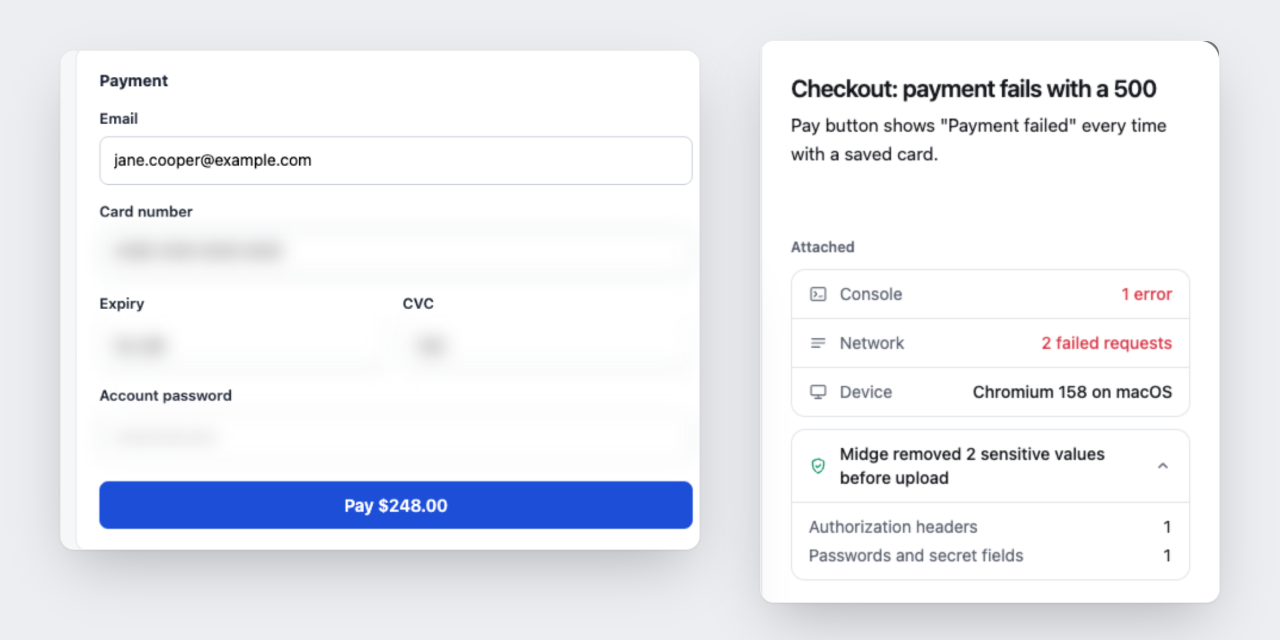
- Attached logs shows how many console errors and failed requests the report has, and the device.
- Midge removed N sensitive values before upload lists what was taken out, by kind: authorization headers, passwords and secret fields, tokens in addresses and so on.
- Add a Title and a Description, pick a Folder and a Visibility, then click Create.
Visibility
| Option | Who can open the report |
|---|---|
| Anyone with the link | Anyone you send the link to |
| Workspace members | Signed-in members of the workspace |
| Only me | You |
The default comes from the workspace’s setting. See Workspaces.
If the upload stops
Uploads resume where they stopped. If your connection drops or you close the tab, open the capture again from the popup (captures waiting) and click Continue upload. The choices you made are kept. To throw a capture away, click Discard capture.